
Set up Claude for your moving business
You need your SmartMoving login and a Claude account (the free plan works).
Add Boosted to Claude
- Open Claude's connectors page: claude.ai, Customize, Connectors.
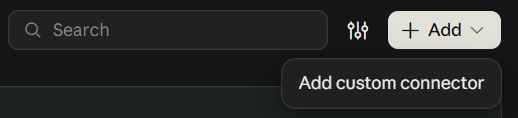
- Click + Add (top right), then Add custom connector.
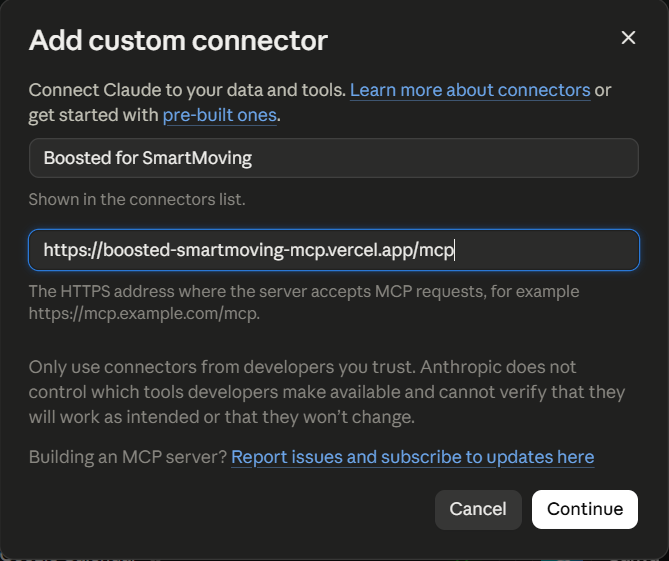
- Name: Boosted for SmartMoving. Address:
Loading...
- Click Continue (then Connect, if Claude shows it).
Using a Team or Enterprise plan, or already have a custom connector?
Team and Enterprise: your Claude admin adds the connector under Organization settings, then Connectors, with the same name and address. You then click Connect in your own Claude.
Free plan: Claude allows one custom connector. If you already use one, remove it or upgrade to add Boosted.
Sign in and connect SmartMoving
Claude opens a Boosted page. Enter the 8-digit code we email you, paste your SmartMoving API key and click Connect and allow. You land back in Claude.
Where do I find my SmartMoving API key?
- Sign in to SmartMoving (app.smartmoving.com).
- Open Settings, then Integrations, then SmartMoving API.
- Copy the API key.
Don't see SmartMoving API? It may be visible to account admins only. Ask whoever manages your SmartMoving account, or ask SmartMoving support to turn on API access. Boosted only reads data; it never changes anything in SmartMoving.
Ask Claude about your business
Start a new chat in Claude and try:
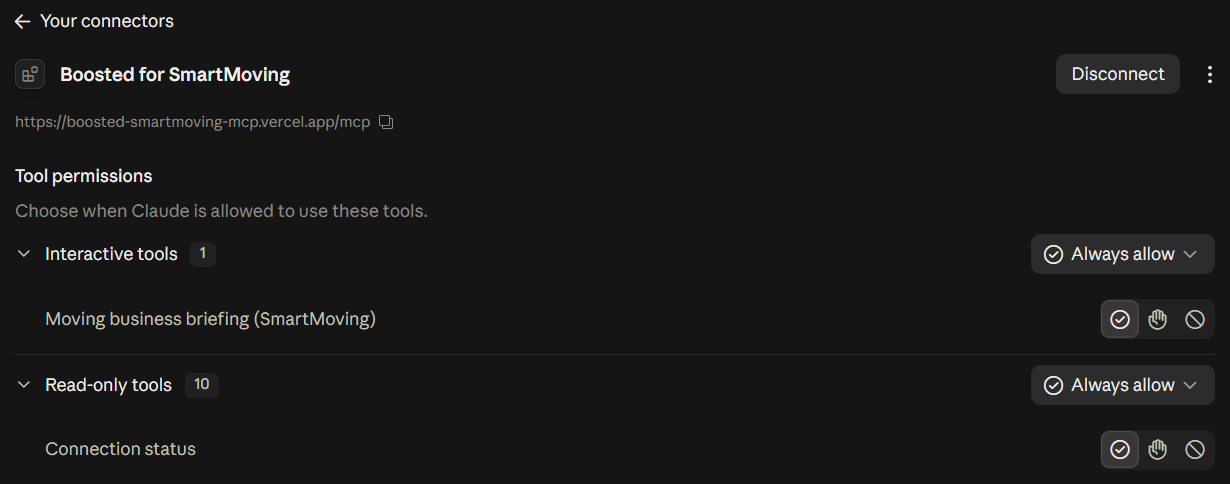
Tip: Claude asks before each lookup until you allow it. In Customize, Connectors, Yours, open Boosted for SmartMoving and set Interactive tools and Read-only tools to Always allow. None of these tools can change anything in SmartMoving.
Already connected? Manage your connection.